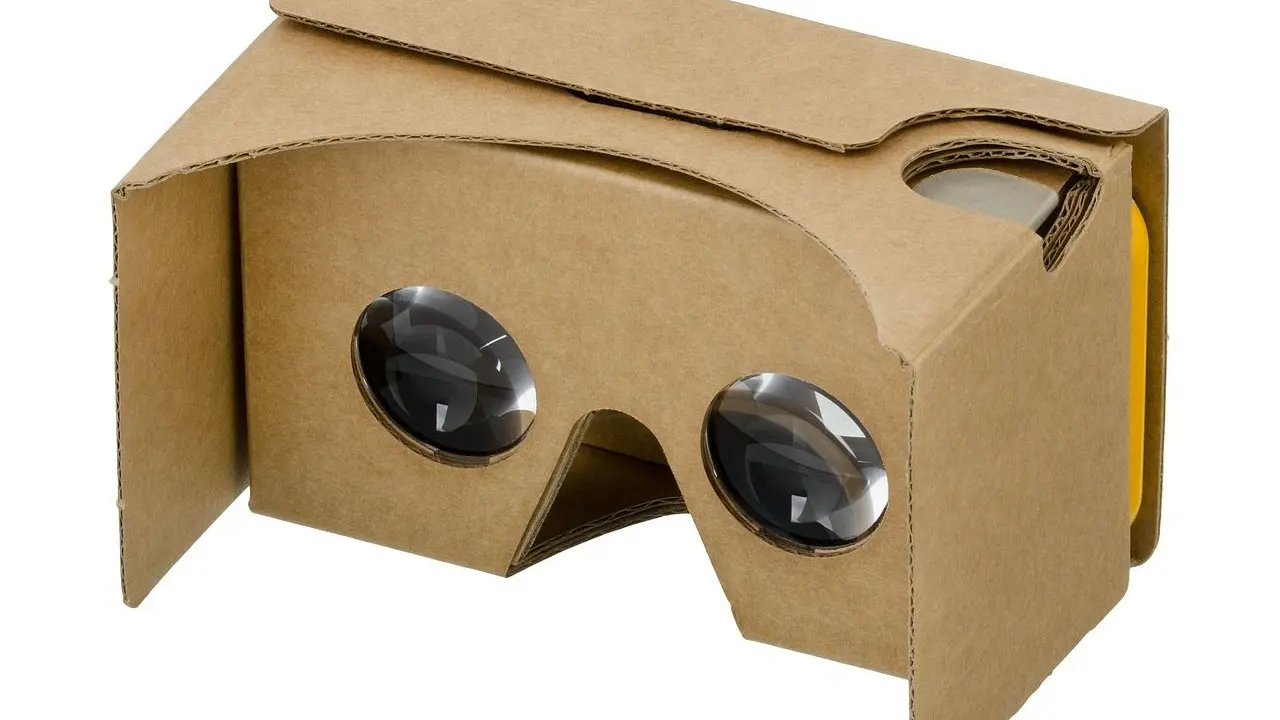
Got a cardboard viewer and not sure how to use Google Cardboard with it? Install the Cardboard app, scan the viewer’s QR code, slot your phone in, and lift it to your eyes. This guide walks you through each step.
This guide is part of the wider smartphone virtual reality section, which covers phone-based headsets from the basics.
| Item | Value |
|---|---|
| Minimum Android version (Google help page) | 4.1 or higher |
| Sensor your phone needs | Gyroscope |
| Pairing step | Scan the QR code on the viewer |
| Lenses in the reference design | Two 45 mm plastic lenses |
| Price range of ready-made viewers (Beebom, updated February 13, 2024) | $17 to $50 |
These figures come from Google’s Cardboard help page and Beebom’s beginner’s guide. They can change, so check the source before you rely on them.
What you need to use Google Cardboard
Setup needs a viewer, a compatible phone and the Cardboard app. The viewer can be ordered ready-made or made at home.
- A viewer: bought or home-built. Beebom’s guide, updated February 13, 2024, puts ready-made viewers at $17 to $50, so today’s prices may differ (Beebom).
- An Android phone: Google’s help page says the phone’s version should be 4.1 or higher (Google Cardboard Help).
- A gyroscope: the same page says a device incompatible message can mean your phone has no gyroscope.
- The Cardboard app: installed from your phone’s app store.
- Headphones: optional, but they help with immersion (more on that below).
Developers building apps with the Cardboard SDK face stricter limits. Google’s Android quickstart lists a device running Android 8.0 (API level 26) or higher for its demo app, and the iOS quickstart lists an iPhone running iOS 12.0 or higher. Newer apps may therefore ask for more than the basic help page does.
The guide on how does phone vr work explains the lenses and sensors behind all this in more depth.
Step-by-step: setting up your viewer
The order below follows Google’s help page for Android phones. Do the QR scan before you put the phone in the viewer, because the sleeve and flaps can hide the code.
- Install the Cardboard app on your phone.
- Open the app and tap the right arrow to start pairing your phone with the viewer.
- Use your phone’s camera to scan the QR code on the viewer. You might need to remove the cardboard sleeve to find it.
- Open the top flap of the viewer, lift the flaps toward you and press them against the fasteners on the sides.
- Put your phone inside the viewer, then close the top flap.
- Look at an object that’s far away, then close your eyes as you bring the viewer up to your face.
- Follow the on-screen instructions to begin.
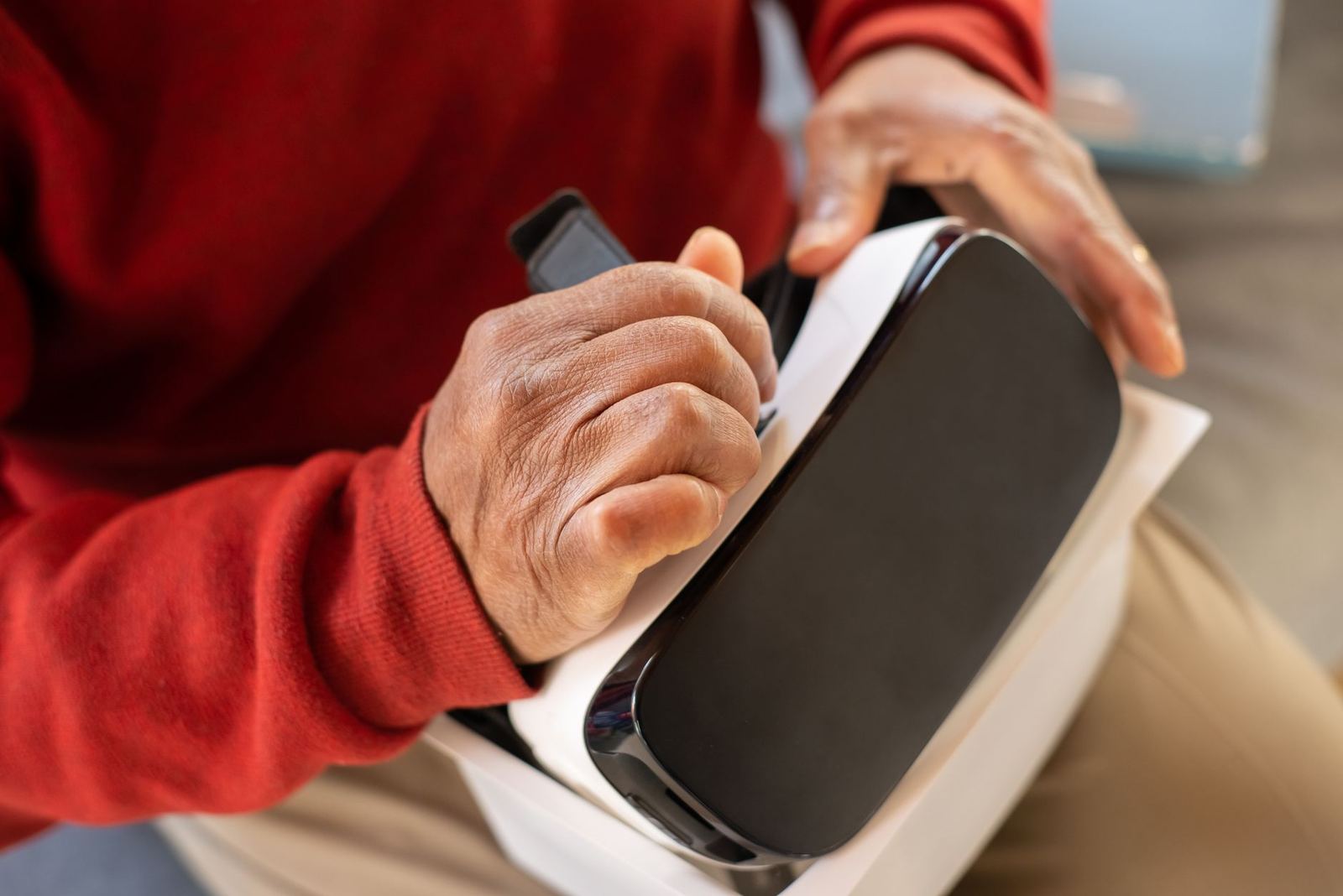
A Purdue University event page for one viewer adds a useful check: once the scene appears, pull the side tabs to sharpen the picture (Purdue). Viewers differ, so treat that as a general hint rather than a rule.
Android Central’s guide, last updated 9 April 2021, explains why the scan matters. For viewers with the orange Works with Cardboard sticker, scanning the code calibrates apps that use the Cardboard SDK to the lens type and fit of your box (Android Central).
How do you look around and select things?
You steer with your head. Beebom’s guide says to move your head left, right or in a circle to navigate (Beebom).
To select something, aim at it and press the viewer’s button. In Google’s HelloCardboard demo, you look directly at a sphere, which changes colour, and then press the viewer button to collect it (Google for Developers).
Button designs vary. The Purdue instructions describe pressing the silver button on the top right side of that particular viewer (Purdue), while Beebom describes an older magnet button on the left side. Check how your own viewer’s button is built before you assume where it is.
Beebom also says that, in the app version it covered, tilting the Cardboard 90 degrees to your right returns you to the main menu. Newer app versions may behave differently, so treat this as a thing to try rather than a promise.
Tips for a more comfortable session
Small habits make a big difference once the viewer is on your face. These are drawn from the guides above.
- Set your volume first. Android Central notes that not every viewer gives easy access to your volume rocker, so set audio before you play (Android Central).
- Save battery. Beebom suggests Airplane mode to stop network activity draining the battery, and downloading VR content beforehand so it works offline (Beebom).
- Stay at home. Beebom advises against using Cardboard in public places because you might cause an accident.
- Use a swivel chair. The same guide suggests one at home, since you will turn around a lot.
- Mind the NFC tag. On NFC-capable Android phones, a viewer’s NFC tag can launch the Cardboard app automatically. Turn NFC off on your phone if you don’t want that.
When you’re ready for more content, the list of the best vr apps for android is a good next stop.
Troubleshooting common problems
Most problems come down to the phone, the QR code or the wrong viewer profile.
- “Device incompatible” message: Google’s help page says your phone may lack a gyroscope.
- Button does nothing: Beebom says phones need a magnetometer, or compass sensor, to work with magnet-button viewers. It also says to place the phone correctly or the magnet button will not respond.
- Can’t find the QR code: remove the cardboard sleeve and look again.
- Using a different viewer: with the app already installed, change the viewer in its settings. Google’s help page says this, and the developer quickstart describes a gear icon for switching viewers.
- Skipped the scan: if no parameters were saved before, the app falls back to the original Google Cardboard (v1, launched at Google I/O 2014) settings, per the developer quickstart. Scan your viewer’s code later for a better match.
Frequently asked questions
Do I have to scan the QR code?
Show answer
The app lets you skip it, but then it saves the original Cardboard (v1) parameters if none were stored before. Scanning your viewer’s code gives the app your viewer’s own lens and fit details, which is why Google’s setup steps include it.
Does Google Cardboard work on an iPhone?
Show answer
Beebom’s guide says you need an Android phone running 4.1 or higher, or an iPhone. Google’s help centre has separate pages for Android and for iPhone and iPad, so follow the one for your phone.
Can I build my own viewer?
Show answer
Yes. Google’s help page says you can buy a viewer or learn to build your own. Beebom points to Google’s manufacturers kit for the parts list and procedure.
Why does my phone say the device is incompatible?
Show answer
Google’s help page links this message to phones without a gyroscope. Check your phone’s specifications for that sensor.
How do I switch to a different viewer?
Show answer
Open the Cardboard app and change the viewer in its settings, as Google’s help page describes. You will scan the new viewer’s QR code so the lens settings update.