Wondering if a bluetooth controller for phone vr is worth it? Yes, if your app supports gamepads: pair it in your phone’s Bluetooth settings, then test it in the app. Support varies by app, so check first.
This guide sits within the wider topic of vr gadgets for smartphones, where controllers are one add-on among several.
| Item | Value |
|---|---|
| Bluetooth version needed for Quest 2 accessories | 3.0 or higher |
| Controller Emulator app version needed for Bluetooth | 1.4.01 or above |
| Taps on the Version item to show Developer Options | 7 taps |
| Hold time on the Home button to recenter | at least 1 second |
| Daydream View headset purchase status | no longer available as of October 15, 2019 |
These figures come from Google’s Controller Emulator page and Android Central’s April 2021 article. Versions, dates and support can change, so check the source before you rely on them.
What a Bluetooth controller does for phone VR
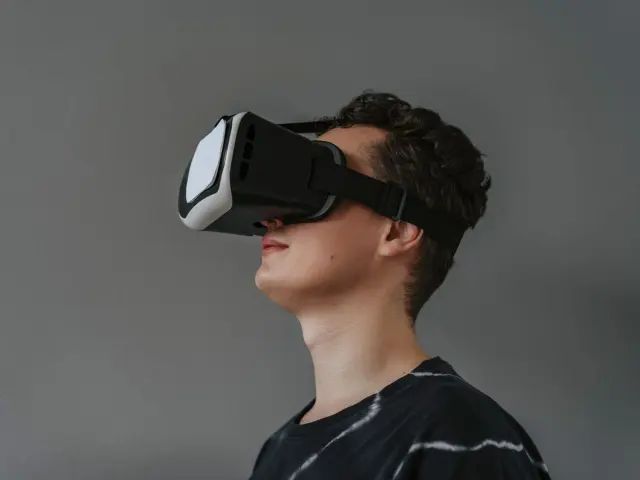
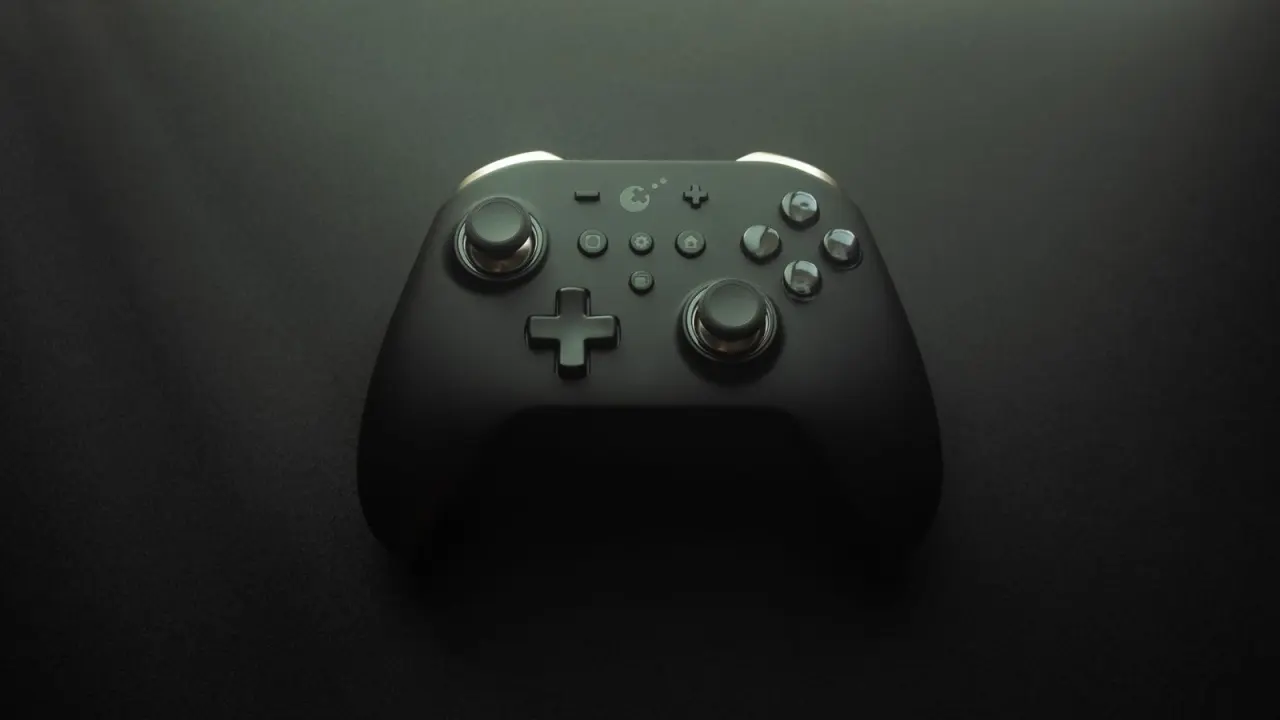
Once your phone is inside a headset, you can’t easily reach the touchscreen. A Bluetooth gamepad gives you physical buttons instead, so you can select, move and confirm without taking the headset off.
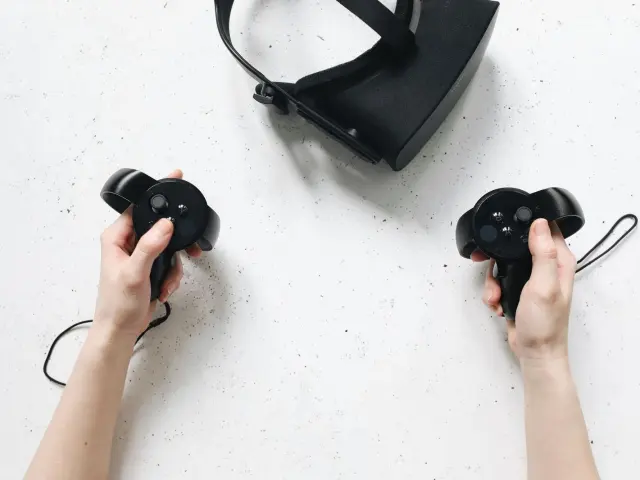
A gamepad is not a motion controller. Android Central’s April 2021 article on the Quest 2, a standalone headset rather than a phone headset, says there are no motion controller alternatives for any Oculus headsets. It also says Bluetooth gamepads work for games that support traditional gamepad controls.
Before you buy anything, make sure you have the basics covered:
- A phone that pairs over Bluetooth.
- A headset that holds the phone securely. If you haven’t chosen one yet, read how to choose a phone vr headset.
- A controller that can enter Bluetooth pairing mode.
- An app or game that accepts gamepad input.
How to pair a Bluetooth controller with your phone
Pairing works much like pairing any other Bluetooth device. The steps below follow the Android flow in Google’s Controller Emulator guide and the general advice in Microsoft’s accessories guide. Menu names differ between phones.
- Open Settings, then Bluetooth, and make sure Bluetooth is switched on.
- Put the controller in pairing mode. Microsoft notes that this varies from device to device, but on most Bluetooth devices you press and hold one or more buttons.
- Wait for the controller’s name to appear in the device list, then tap it.
- Confirm the pairing on the phone. Some devices show a PIN; Microsoft says it can be 6-digit or 8-digit, and you type it on the device being paired.
- Open your VR app and check that the buttons respond before you put the headset on.
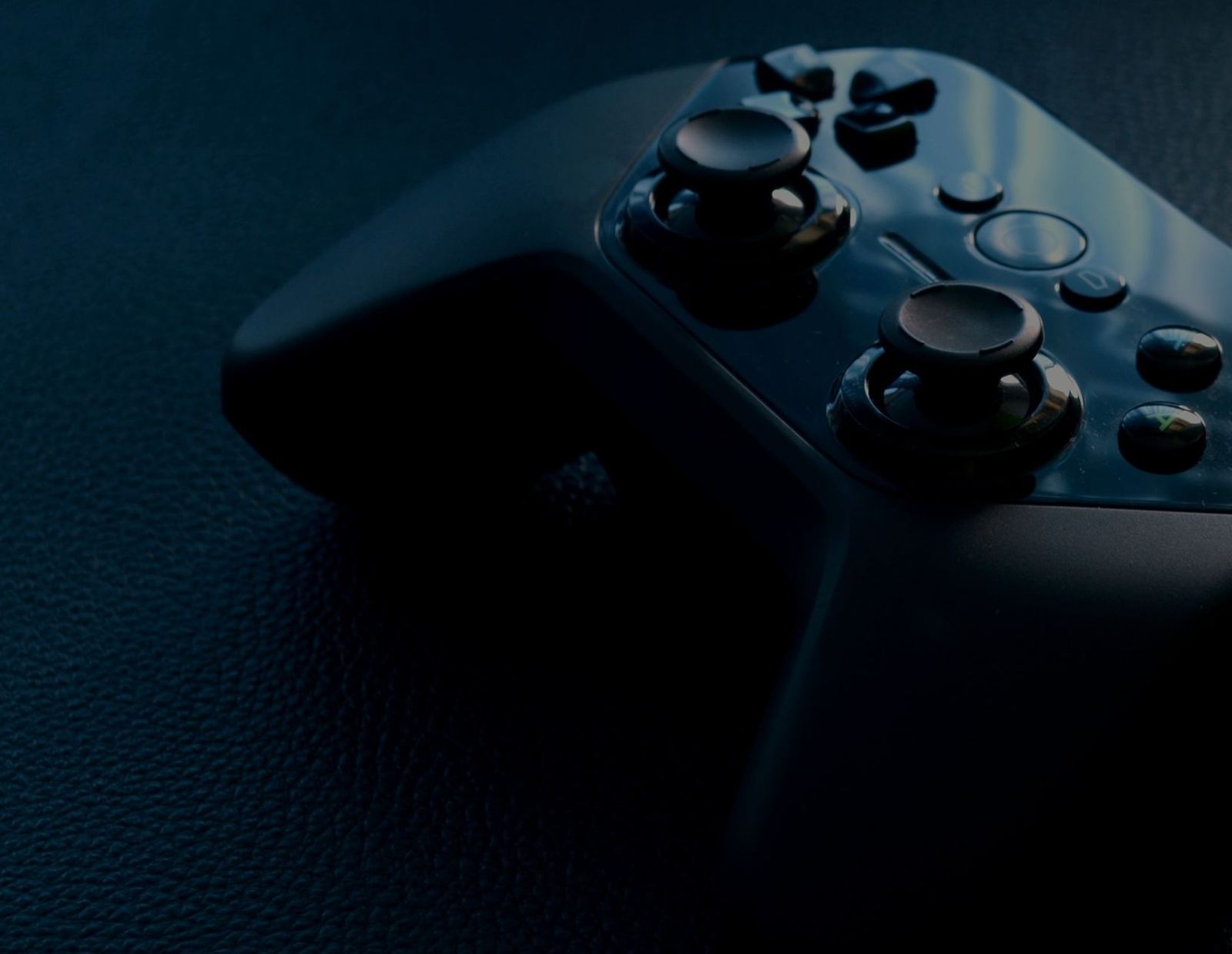
Get the picture sharp first, because blurry lenses make menus hard to read. See how to adjust ipd on vr headset before you test controls.
Will every VR app respond to a gamepad?
No. Microsoft’s guide, last updated 2021-01-19, says you can use a controller with apps and games that specifically enable gamepad support. It adds that other brands of Bluetooth gamepads may work, but support will vary by application.
That guide covers Windows Mixed Reality devices, not phone headsets, but the lesson carries over: app support matters more than the controller’s brand. Android Central’s April 2021 article makes a similar point about a standalone headset, saying that Xbox and PlayStation controllers pair easily but work only for a specific set of games.
Before you spend money, run through this short check:
- Look in the app’s description or settings for any mention of gamepad or controller support.
- Try a controller you already own before buying a new one.
- Test the pairing outside the headset, so you know the phone sees the controller.
Using a second phone as a Daydream controller
Google once documented a different trick: using a second Android phone as a Daydream controller. The Controller Emulator page says the controller phone must run KitKat or above and must have a gyroscope.
This is now a legacy route. As of the page’s 2024-10-09 update, Google labels the Controller Emulator app deprecated. The same site says the Daydream View headset has been unavailable for purchase since October 15, 2019, and that its content was last updated in 2019.
As of November 2023, per the same Google page, previously supported devices can no longer download Google VR Services for new users. So treat the setup below as a record of how it worked, not a recommended route for a new phone VR setup:
- Install the Controller Emulator on the spare phone.
- Pair the headset phone and the controller phone in Settings, then Bluetooth, on both devices.
- In Google VR Services settings on the headset phone, tap the Version item 7 times to show Developer Options, then select the controller emulator device.
- Use version 1.4.01 or above of the emulator app, because Google says only the latest version connects via Bluetooth.
The emulator’s touchpad does not support multi-touch. A click is emulated by double-tapping, and a Home button recenters the controller.
Troubleshooting a controller that won’t connect
Most problems come down to a short list of causes. Work through them in order:
- Bluetooth is off. Google notes that the emulator app does not warn you if Bluetooth is off, so check both devices.
- The devices aren’t paired. Google says the headset phone and controller phone must be paired over Bluetooth first.
- The accessory is too old. For the Quest 2, Android Central says accessories need Bluetooth 3.0 or higher.
- The pairing is stale. Microsoft’s steps for unpairing are to select the device in the Bluetooth list and choose Remove, then pair again.
- The aim has drifted. To recenter an emulated controller, Google says to hold the Home button, keep the phone level with the horizon for at least 1 second, then release.
If the controller pairs but nothing happens in the app, the app most likely lacks gamepad support. Try a different app before you assume the hardware is at fault.
Frequently asked questions
Can I use any Bluetooth gamepad with phone VR?
Show answer
Pairing is one step and app support is another. Microsoft’s guide, last updated 2021-01-19, says support for other brands varies by application, so test your controller in the app you want to use.
Do I need a second phone to use a controller?
Show answer
No. A second phone is only needed for the Daydream Controller Emulator, which Google’s page marks as deprecated as of its 2024-10-09 update. A normal Bluetooth gamepad pairs directly with your headset phone.
Can I use a Bluetooth keyboard or mouse instead?
Show answer
Android Central’s April 2021 article says Bluetooth keyboards and mice that support Bluetooth 3.0 and up pair with the Quest 2. That is a standalone headset, so check your own phone and app before assuming the same applies.
What if pairing asks for a PIN?
Show answer
Microsoft says input devices such as keyboards may display a 6-digit or 8-digit PIN. Type it on the device you are pairing, then confirm.